Troubleshooting Guides

  • Pneumatics & Lift
  • Conveyance Flow & Jam
  • Conveyor Power & Motor
  • Barcode Scanning
  • Network & Connectivity

Problem

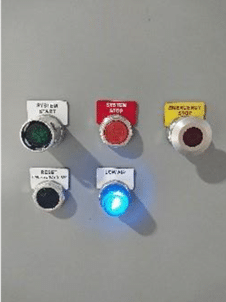
Low air light on


Try this first!

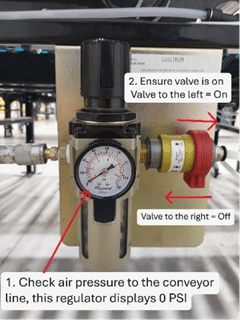
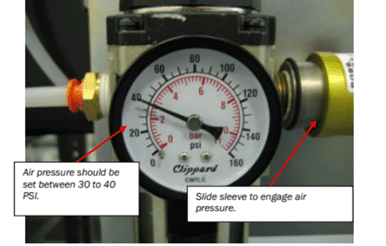
  • Check to see if air pressure gauges show air pressure – DO NOT adjust

Next Steps:

  1. Ensure power is being supplied to the compressor equipment and is on. 
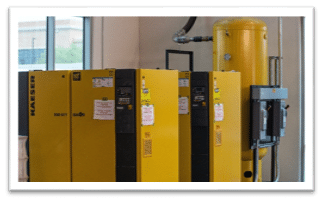
    • Compressor turns on and off automatically.  
    • Status lights on.
    • Screen on.
    • Emergency stop in the home/reset position.


2. Ensure sufficient air pressure is being supplied to the conveyor regulator. If not, set air pressure to the manufacturer’s requirements. 

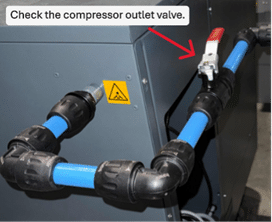
2. Ensure all compressor outlet valves & valves along the pneumatic pipe run are open.

    • Follow pneumatic lines to the shutdown conveyor area ensuring all valves are open 
    • Ask maintenance if they shut off an area.  

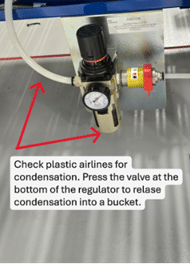
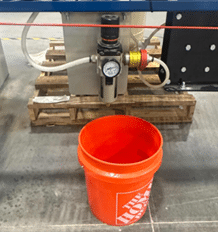
4. Check plastic lines for condensation and empty pneumatic lines into a bucket for proper disposal.  


Transfers not raising

Try this first!

  • Make sure valves on conveyor are turned on.
  • Make sure air compressor has power and is turned on.

Troubleshooting Steps

Possible/likely causes:  

    • No air pressure / low air pressure.  
    • Blocked or kinked air lines.
       
    • Check for mechanical obstructions, paper, tape, labels, and debris.  

Notify your maintenance after checking these items, and transfer is still having problems  


Problem

Cartons are stopped and not moving forward

Amber Light at merge or divert is on

Cartons stop in the middle of a conveyor.

Try this first!

  • Check if the carton is caught on the guardrail or frame.

Troubleshooting Steps

  1. Locate the conveyor jam, often identified by amber beacon and product build up

  2. Ensure area is safe and then clear the jam by removing boxes, press the reset push button near the jam beacon to reset the beacon.


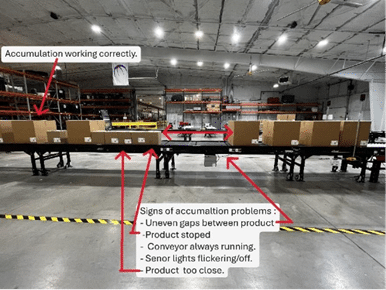
Accumulation not working properly

  • Check to see if photo eyes are aligned at or downstream of the problem area.
  1. Check the conveyor electrical along the stopped conveyor.   
    • Check power connections. 
    • Check ethernet connections.  
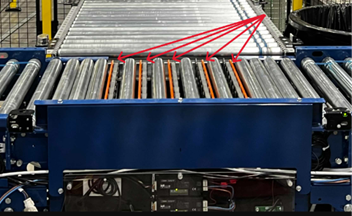
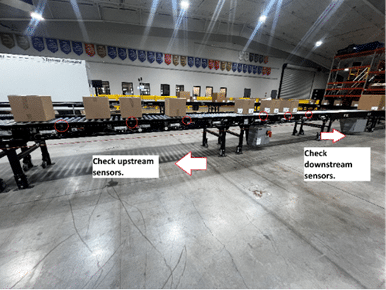
    • Check conveyor sensors for alignment upstream and downstream.  

How to align external sensors:  

    1. Locate the misaligned sensor.  
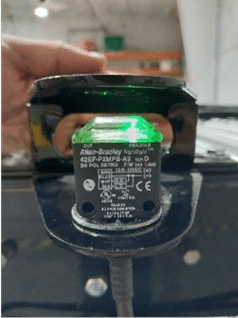
    2. Loosen plastic nut underneath the senso and turn until both lights illuminate across the reflector.   

    3. Once aligned, flag the sensor a few times and confirm the sensor changes state and signal is being displayed on the HMI.  

      • When sensor is aligned correctly the amber light will go way.  
    4. Tighten plastic nut when done.  
  •  
  •  
  •  

Problem

Conveyor or section of conveyor will not run

Try this first!

  • Check that all Emergency Stops are reset.
    • Pullcords may need to be adjusted for proper tension.
    • Make sure the reason for the emergency stop has been corrected and that it is safe to start the conveyor.
  • Do not open control panels with power turned on. have qualified technicians check for tripped motor protectors or circuit breakers

Troubleshooting Steps


Emergency device with proper tension. 

    1. Tension line inside the window.  
    2. Green LED on. 
    3. System is ready and start button can be pressed.  


Emergency device without tension/tripped

    1. Tension cable is loose
    2. Red LED on device
    3. System stopped due to equipment or personnel emergency. Include making sure it is safe to restart


How to tension & reset pullcord device

    1. Loosen left hand and regular nut on the pullcord turnbuckle.
    2. Turn the tension turnbuckle until line is within the window.
    3. Tighten left hand and regular nut after tensioning.


    1. LOTO control panel for the conveyor system.
    2. Locate the tripped breaker and cross reference schematics to ensure it’s the right one. Investigate and correct problems before resetting breakers.
    3. Turn the knob until it locks into the reset position. Close panel door, remove LOTO and energize the control panel.
    4. Ensure area is clear and safe, then press the panel and start push button.
    5. Review area and ensure equipment turns back on and monitor.
      • Do not repeatedly reset or turn up motor protectors.
      • Check for the reason for the problem (mechanical problems, loose wires, etc)

Problem

Barcode cameras or scanners are not reading barcodes

Try this first!

  • Make sure labels are facing the correct direction.
  • Check that labels aren’t damaged, wrinkled, or covered by tape.
  • Check HMI for connection status of scanner.
  • Remove debris blocking the scanner window (dust, tape, shrink wrap)
    • Clean with microfiber cloth, do not use liquids
  • Check photo-eye alignment upstream of the scanner.

Troubleshooting Steps

Good scan reads :  
Good light = good label

Bad scan reads & barcode examples:  
Red light =, bad label, no label, and multiple labels.  

Step by step for cleaning a barcode scanner: 

  1. Turn off scanner. 
  2. Wipe the lens with a slightly damp microfiber cloth.  
  3. Wipe the body with a cloth + alcohol.
  4. Let it dry both lens and body air dry.  
  5. Turn scanner back on and ensure its online.

Barcode cameras or scanners are reading wrong bar code

  • Check for other bar codes stuck to rollers or in field of view.


Problem

Ethernet devices lost connection

Try this first!

  • Look for loose cables that may have been bumped or pulled.
  • Make sure no pallets or equipment are pressing on network cables.
  • Check if nearby equipment lost power.
  • If the devices has indicator lights, see if any are off
    • Report findings to maintenance/IT.

Troubleshooting Steps

Network Switch:   

    1. Ensure network cable is seated correctly on both ends. 
    2. Ensure network devices have power and turned on. 
    3. Check for LED status for the device that’s off.   
    4. Disconnect the cable causing issues.    
  1.  
      • Test Ethernet pinout and ensure they match on both ends using a tester.

Ethernet I/O :  

  1. Ensure device has power and is turned on.
  2. Confirm Link 1 and Link 2 status lights.
  3. Ensure network cables are seated correctly and firm.
  4. Check network cables for any damage along the cable path
  5. Disconnect cable causing problems and check with a network tester. 
    • Pins 1-8 should match top and bottom when cable is made up correctly.  
    • If pins 1-8 do not match the cable is bad and needs to be replaced
  • Pneumatics & Lift
  • Conveyance Flow & Jam
  • Conveyor Power & Motor
  • Barcode Scanning
  • Network & Connectivity

Problem

Low air light on

Try this first!

  • Check to see if air pressure gauges show air pressure – DO NOT adjust

Troubleshooting Steps

  1. Ensure sufficient air pressure is being supplied to the conveyor regulator. 


    Set air pressure to the manufacturer’s requirements.


  2. Ensure all compressor outlet valves & valves along the pneumatic pipe run are open.
    • Follow pneumatic lines to the shutdown conveyor area ensuring all valves are open 
    • Ask maintenance if they shut off an area.  

  3. Check plastic lines for condensation and empty pneumatic lines into a bucket for proper disposal 

  4. Ensure power is being supplied to the compressor equipment and is on. 
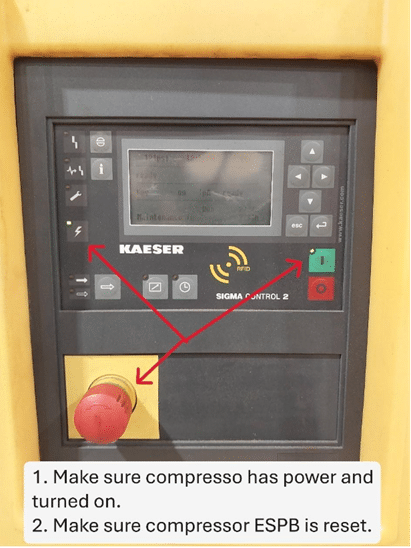
    • Compressor turns on and off automatically.  
    • Status lights on.
    • Screen on.
    • Emergency stop in the home/reset position.


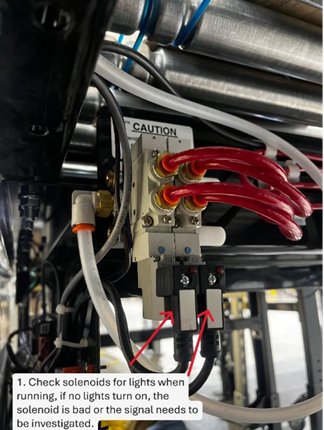
Transfers not raising

Try this first!

  • Make sure valves on conveyor are turned on.
  • Make sure air compressor has power and is turned on.
Troubleshooting Steps

Possible/likely causes:  

    • No air pressure / low air pressure.  
    • Blocked or kinked air lines.
       
    • Check for mechanical obstructions, paper, tape, labels, and debris.  

Notify your maintenance after checking these items, and transfer is still having problems  

Problem

Cartons are stopped and not moving forward

Amber Light at merge or divert is on

Cartons stop in the middle of a conveyor.

Try this first!

  • Check if the carton is caught on the guardrail or frame.

Troubleshooting Steps

  1. Locate the conveyor jam, often identified by amber beacon and product build up

  2. Ensure area is safe and then clear the jam by removing boxes, press the reset push button near the jam beacon to reset the beacon.


Accumulation not working properly

  • Check to see if photo eyes are aligned at or downstream of the problem area.
  1. Check the conveyor electrical along the stopped conveyor.   
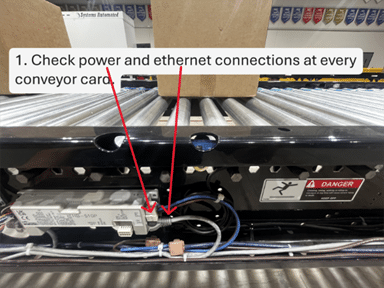
    • Check power connections. 
    • Check ethernet connections.  
    • Check conveyor sensors for alignment upstream and downstream.  

How to align external sensors:  

    1. Locate the misaligned sensor.  
    2. Loosen plastic nut underneath the senso and turn until both lights illuminate across the reflector.   

    3. Once aligned, flag the sensor a few times and confirm the sensor changes state and signal is being displayed on the HMI.  
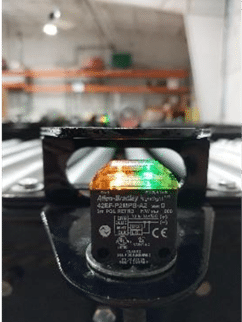
      • When sensor is aligned correctly the amber light will go way.  
    4. Tighten plastic nut when done.  
  •  
  •  
  •  

Problem

Conveyor or section of conveyor will not run

Try this first!

  • Check that all Emergency Stops are reset.
    • Pullcords may need to be adjusted for proper tension.
    • Make sure the reason for the emergency stop has been corrected and that it is safe to start the conveyor.
  • Do not open control panels with power turned on. have qualified technicians check for tripped motor protectors or circuit breakers

Troubleshooting Steps


Emergency device with proper tension. 

    1. Tension line inside the window.  
    2. Green LED on. 
    3. System is ready and start button can be pressed.  


Emergency device without tension/tripped

    1. Tension cable is loose
    2. Red LED on device
    3. System stopped due to equipment or personnel emergency. Include making sure it is safe to restart


How to tension & reset pullcord device

    1. Loosen left hand and regular nut on the pullcord turnbuckle.
    2. Turn the tension turnbuckle until line is within the window.
    3. Tighten left hand and regular nut after tensioning.


    1. LOTO control panel for the conveyor system.
    2. Locate the tripped breaker and cross reference schematics to ensure it’s the right one. Investigate and correct problems before resetting breakers.
    3. Turn the knob until it locks into the reset position. Close panel door, remove LOTO and energize the control panel.
    4. Ensure area is clear and safe, then press the panel and start push button.
    5. Review area and ensure equipment turns back on and monitor.
      • Do not repeatedly reset or turn up motor protectors.
      • Check for the reason for the problem (mechanical problems, loose wires, etc)

Problem

Barcode cameras or scanners are not reading barcodes

Try this first!

  • Make sure labels are facing the correct direction.
  • Check that labels aren’t damaged, wrinkled, or covered by tape.
  • Check HMI for connection status of scanner.
  • Remove debris blocking the scanner window (dust, tape, shrink wrap)
    • Clean with microfiber cloth, do not use liquids
  • Check photo-eye alignment upstream of the scanner.

Troubleshooting Steps

Good scan reads :  
Good light = good label

Bad scan reads & barcode examples:  
Red light =, bad label, no label, and multiple labels.  

Step by step for cleaning a barcode scanner: 

  1. Turn off scanner. 
  2. Wipe the lens with a slightly damp microfiber cloth.  
  3. Wipe the body with a cloth + alcohol.
  4. Let it dry both lens and body air dry.  
  5. Turn scanner back on and ensure its online.

Barcode cameras or scanners are reading wrong bar code

  • Check for other bar codes stuck to rollers or in field of view.


Problem

Ethernet devices lost connection

Try this first!

  • Look for loose cables that may have been bumped or pulled.
  • Make sure no pallets or equipment are pressing on network cables.
  • Check if nearby equipment lost power.
  • If the devices has indicator lights, see if any are off
    • Report findings to maintenance/IT.

Troubleshooting Steps

Network Switch:   

    1. Ensure network cable is seated correctly on both ends. 
    2. Ensure network devices have power and turned on. 
    3. Check for LED status for the device that’s off.   
    4. Disconnect the cable causing issues.    
  1.  
      • Test Ethernet pinout and ensure they match on both ends using a tester.

Ethernet I/O :  

  1. Ensure device has power and is turned on.
  2. Confirm Link 1 and Link 2 status lights.
  3. Ensure network cables are seated correctly and firm.
  4. Check network cables for any damage along the cable path
  5. Disconnect cable causing problems and check with a network tester. 
    • Pins 1-8 should match top and bottom when cable is made up correctly.  
    • If pins 1-8 do not match the cable is bad and needs to be replaced